
In WorkWise, you can decide who can see which procedures by using User Groups.
A User Group is simply a set of people you choose to group together. You can connect one or more User Groups to specific folders in your WorkWise Library so that the procedures in thole folders are only visible to the people in those groups.
By default, everyone in your organization can see all procedures in the Library. When you create User Groups and assign them to folders, you can limit visibility so the right people see the right procedures—and others don’t. Specifically, once you add at least one User Group to a folder, that folder becomes no longer public, and is only visible to users in the assigned User Group(s).
To begin, first start by creating a User Group. To create a User Group, click on the "Manage Users" page in the sidebar. From here, click on the "User groups" tab.
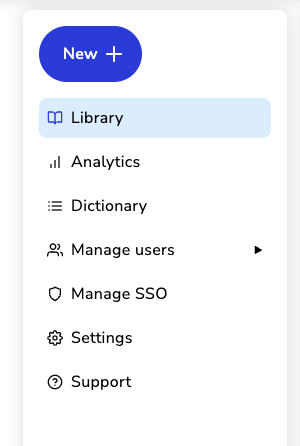
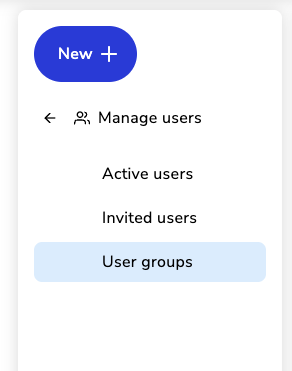
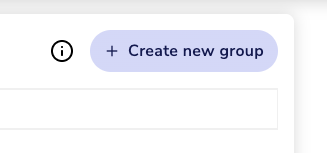
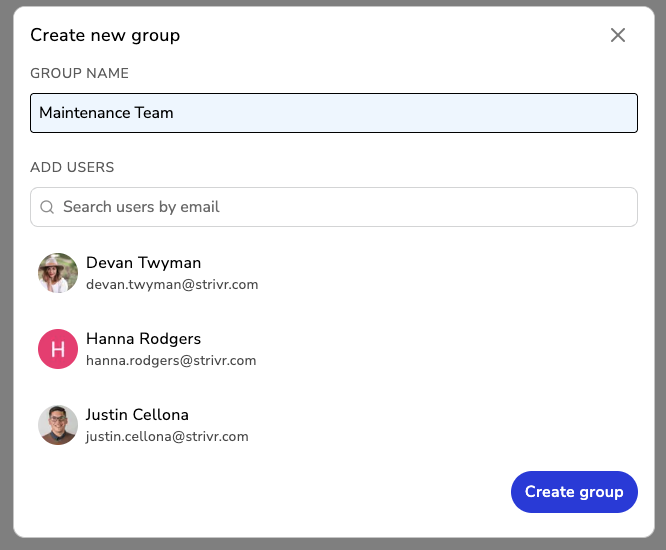
Click on the "Create new group" button at the top-right of the page. You will see a modal pop up.
From here, you will need to create a name for the group and add at least one existing WorkWise user to the group. You can search for existing users by typing in their email address.
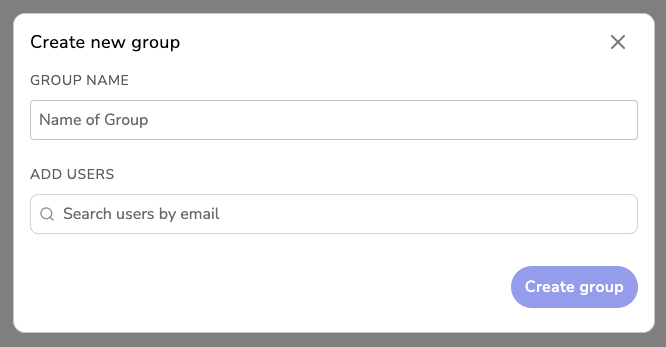
Once user(s) are added, click "Create group".
Now that the User Group is created, you can go into any folder and assign one or more User Groups to that folder. As a reminder, assigning a User Group to a folder reduces the visibility of the contents of that folder to only the people in those group(s).
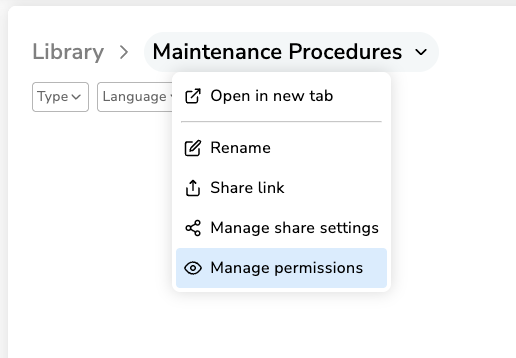
To add a User Group to a folder, click on a folder, and select "Manage permissions" in the dropdown.
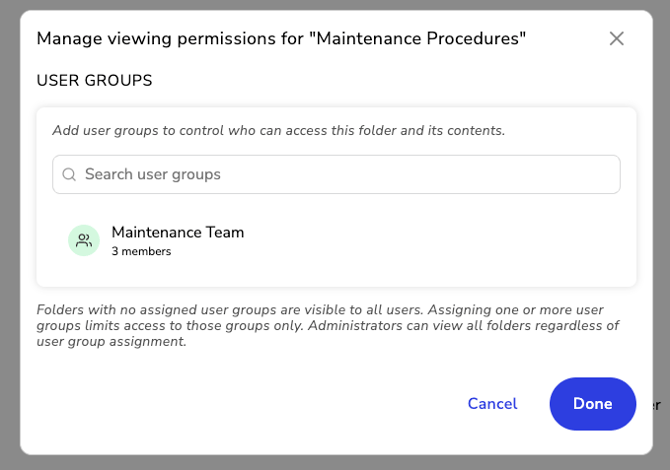
A modal will pop up and from here you can add one or more existing User Groups that you want this folder to visible to. The list of available User Groups will auto-populate as you start typing. Once you have selected one or more User Groups, click "Done".
Now that User Group(s) have been added to a folder, you will see a new badge appear that shows that the folder and its contents have been restricted.