Permission Requirements
| Role | Add/Edit/Delete Dictionary terms |
| Admin | ✓ |
| Creator | X |
| Viewer | X |
WorkWise uses high quality speech-to-text technology to generate accurate video transcriptions. However, most speech-to-text technology is built on widely-used language and terminology. If your company uses any language or jargon specific to only your company, chances are, generic speech-to-text models might not pick up on those phrases when they are spoken in videos.
To help with this, we have built a Dictionary feature where WorkWise Admins can add any company-specific terms, phrases, jargon, branded terms, acronyms, product names, etc. to help our transcription service pick up and identify these terms correctly.
Note: During our extensive research and testing, we have found that adding terms to your Dictionary doesn't guarantee 100% accuracy, however it greatly improves accuracy compared to not having a dictionary at all.
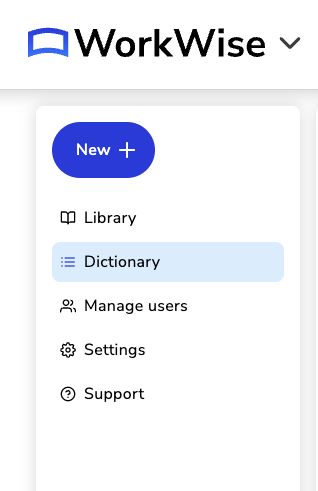
To add words/phrases/terms to your Dictionary, click on the Dictionary page from the side menu in WorkWise.
From here, you will see a new page showing you a list of all added words or phrases. You can also manage your terms from this page.
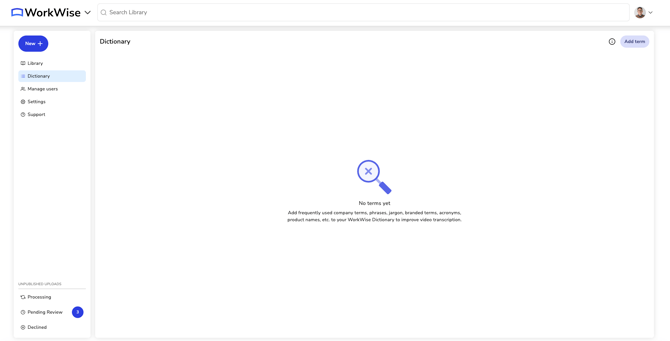
To add a new term to your Dictionary, click on the "+ New term" button on the top right of this page. When you click that button, a modal will pop up prompting you to add your term.
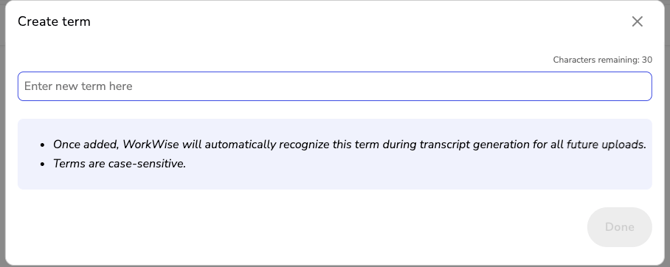
Please note the following:
- Each term can be a maximum of 30 characters
- Terms are case-sensitive, meaning that "CAT" and "cat" can both be added
- Up to 100 terms can be added to your Dictionary at a time
Important: once a term has been added to your Dictionary, any existing videos that may contain that term will NOT be reprocessed automatically to look for the added terms. Only uploads that occur after a term is added will make use of the Dictionary to improve transcriptions. The same thing goes for deleting a term from the dictionary - any existing video transcripts will not be affected.
Once term(s) have been added, you will see them on the Dictionary page.

You can edit or delete Dictionary terms at any time. You can also use the search bar to search for any terms that might have been added.
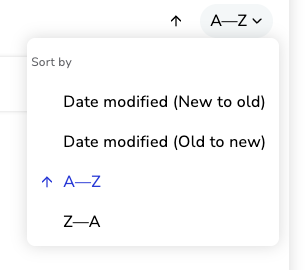
The Dictionary term list can also be sorted either alphabetically or by date modified.