
Permission Requirements
| Role | View/Download Analytics Data |
| Admin | ✓ |
| Creator | X |
| Viewer | X |
The Analytics page in WorkWise allows users with the Admin role to see data related to viewing and usage habits for your WorkWise procedures.
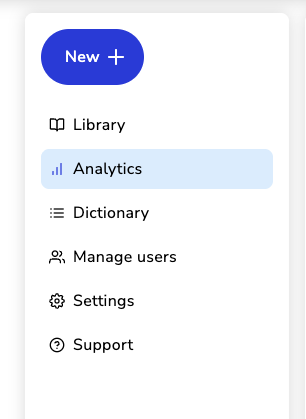
If you have the Admin role, click on "Analytics" in the sidebar.
On the Analytics page, you will first see the "Overview" tab. On this tab, you will see a snapshot of usage data for the selected time period. The default time period is 30 days, but you can change the time period to another preset range, or select a custom range.

The first three metrics you'll see are as follows:
- Total session - The total number of unique viewing sessions started during the selected time period
- Total users - The total number of distinct users who have viewed at least one procedure during the selected time period
- Total procedure page views - The total number of times any procedure page was opened during the selected time period. Includes repeated views of the same procedure by the same user.
Below those metrics, you will see two bar charts.
The first bar chart shows the most popular procedures by page views. More specifically, it shows procedures with the highest number of page views within the selected time period, including repeat views by the same user, limited to the top 10.
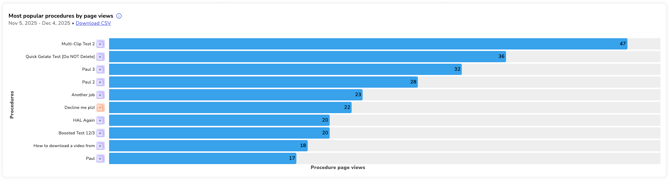
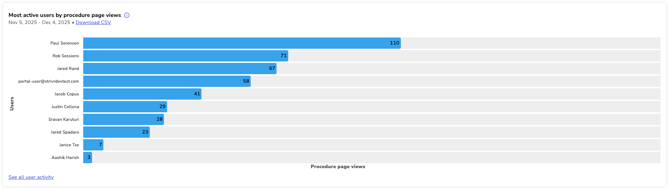
You can download the data shown on both bar charts by clicking "Download CSV" in the respective chart.
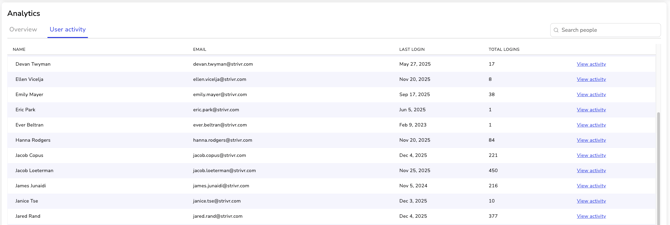
There is another tab on the Analytics page called "User activity". This tab allows you to see WorkWise usage data broken down by user. When you click on this tab, you will first see a list of all users in your tenant, as well as their email, the number of times they've logged in, and the timestamp of their most recent login.
If you click on a specific user, you will a a detailed list view of that user's activity over the selected time period.
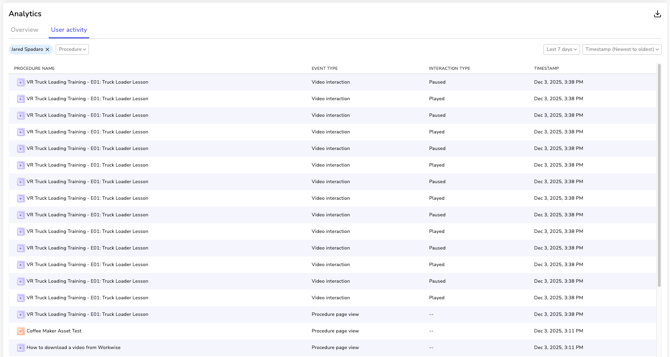
The default view is showing all usage events for that user in chronological order, starting with the most recent events.
You can see events around a user accessing a specific procedure as well watching the video associated with that procedure. The default view spans across all procedures but it can be filtered to data associated with a specific procedure by using the dropdown filter.
The data can also be sorted in reverse chronological order, with older events showing first, as well as sorting by the procedure name.
The data can be downloaded by clicking on the download icon in the top-right of this page.